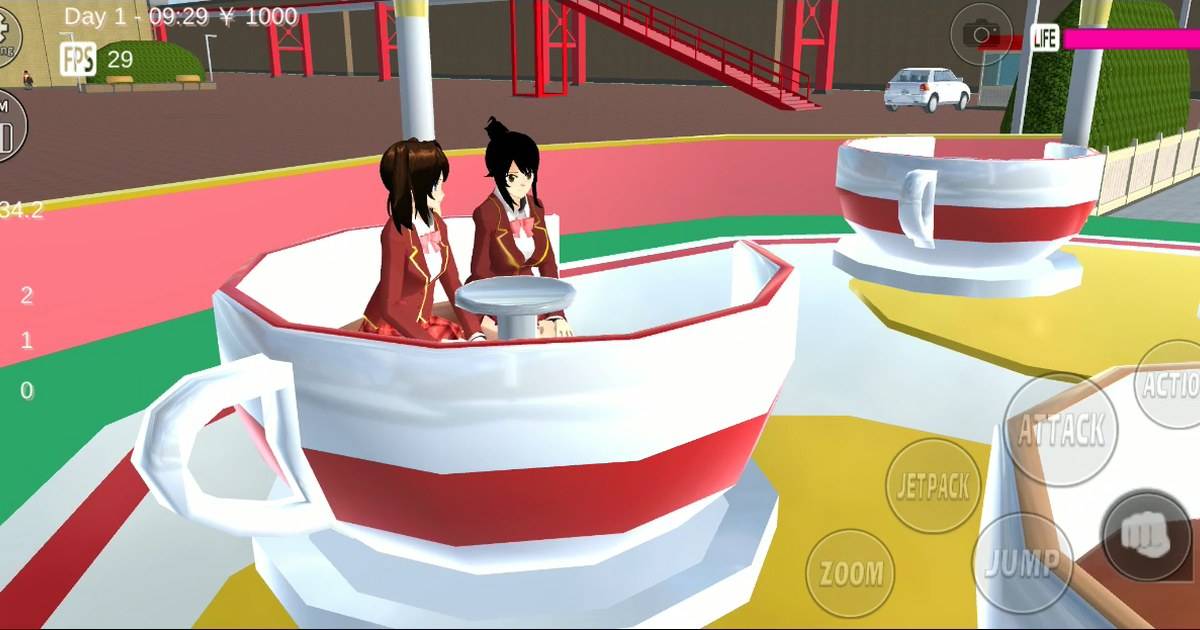
Two characters stand face to face in Sakura School Simulator, but one of them keeps staring past the other person. It is a tiny detail that can make a carefully planned conversation look strangely lifeless. The good news is that the game has an option designed for just this sort of moment: NPC “turn the body” in Pose Mode.
Garusoft listed that option among the additions in its April 2024 update. The developer says an NPC’s upper body can turn toward the player or the camera. That does not give the NPC better dialogue or a smarter personality. It gives creators a way to make a scene easier to read, especially when two people are supposed to be speaking to one another.
Highlights
- NPC “turn the body” was named in Garusoft’s version 1.042.10 release notes.
- The documented feature turns an NPC’s upper body toward the camera or player.
- Good blocking matters: where characters stand can be as important as the pose you select.
- The filming exercises below are creator-made examples, not hidden missions.
Quick answer: In Pose Mode, look for the NPC “turn the body” option on a supported character, then arrange the character and camera so the upper-body turn suits the conversation. If the effect looks awkward, change the camera position or return to a neutral pose.
Table of Contents
- What Garusoft Actually Confirmed
- Start With a Two-Person Scene
- Camera Placement Changes the Result
- Make Movement Smaller, Not Bigger
- Troubleshooting an Unnatural Turn
- A Three-Shot Conversation Template
- Frequently Asked Questions
- Final Thoughts
What Garusoft Actually Confirmed
The official App Store version history names “NPC turn the body” as a Pose Mode addition in version 1.042.10. Its purpose is specific: an NPC can rotate the upper body when looking toward the camera or player. That is stronger evidence than a viral tutorial claiming that a secret conversation button exists. The feature is about orientation, not unlocking new relationship levels.
Because release notes describe the effect rather than every tap needed to find it, menu labels may differ across updates. Open Chara Edit and explore the Pose Mode options available to the character you are staging. If that character does not offer the expected control, test a regular NPC in an ordinary location before assuming the whole feature is missing.
Start With a Two-Person Scene
Pick a simple setting: a school corridor after class, a bench near the entrance, or a quiet corner of Sakura Town. Place your playable character where the viewer can see their face. Put a second character a short distance away, rather than directly against the first character. That separation leaves enough room for both bodies to turn without looking as though they occupy the same space.
Try a scene in which one student asks where the lost notebook went. Let the first student face the other person and keep the camera slightly off to one side. When the response comes, switch your camera angle instead of pushing both characters around. A believable exchange often comes from small changes in framing rather than dramatic gestures.
- Choose an uncluttered place with space behind the two characters.
- Arrange a speaker and a listener so their bodies do not overlap.
- Use a neutral pose first; then test the NPC upper-body turning feature.
- Check the scene from two camera angles before you start recording.
Camera Placement Changes the Result
An NPC turning toward the camera can look wonderful in a direct-to-viewer announcement. The same turn looks wrong in a scene where the NPC is meant to listen to somebody standing off-screen. That is why you should decide who the NPC is looking at before deciding where the camera goes.
For an interview, place the camera close to the interviewer’s shoulder and let the interviewee look slightly toward the lens. For a classroom discussion, use a wider angle that shows both students. If you need a reaction shot, move the camera and record a second take. There is no need to make the turn solve every camera angle simultaneously.
Make Movement Smaller, Not Bigger
When characters look stiff, the instinct is often to add more animations. Too much movement can hide the important action: a question, a surprise, a disagreement, or a quiet apology. Keep the person who is listening relatively still and reserve a more expressive pose for the person speaking.
Try recording the same ten-second exchange twice. In the first take, make both characters move continuously. In the second, allow one character to listen while the other turns slightly. Watch both clips without sound. The take that makes the conversation understandable without dialogue is usually the stronger starting point.
Troubleshooting an Unnatural Turn
The most common creative mistake is mixing a body-turn setting with a pose that already twists the upper torso. The result can look exaggerated. Start with the simplest pose, adjust character spacing, and introduce one control at a time. If the NPC is facing the wrong direction, moving the camera can be easier than rebuilding an entire scene.
A control missing from one character does not prove that every NPC supports the same action. Garusoft has documented character-specific limitations for several appearance and pose features over time. Keep the app updated, test an ordinary student NPC, and avoid advice that tells you to reinstall or erase your save just to repair a camera angle.
- Problem: the character turns toward the lens during an argument. Try moving the lens off to the listener’s side.
- Problem: faces overlap. Increase the distance between characters before adjusting the pose.
- Problem: the upper body looks twisted. Remove other strong poses and test the turn on its own.
A Three-Shot Conversation Template
Here is a compact filming plan you can repeat. Shot one: a wide view establishes the classroom and two characters. Shot two: the first character asks a question, framed with the listener’s shoulder in the foreground. Shot three: the listener answers in a closer shot. Record each as a separate take, then put them in that order in a video editor.
If you are using captions, write only the sentence the character needs to say. Readers should not have to scan a paragraph while the camera is moving. Treat the NPC turn as a finishing touch. The actual clarity comes from knowing where the conversation begins, who is responding, and what has changed by the end.
Frequently Asked Questions
When was NPC Turn the Body added?
Garusoft’s App Store history lists the Pose Mode option in version 1.042.10 in April 2024.
Does the option make NPCs talk automatically?
No. It changes how an NPC can orient its upper body; it is not a dialogue generator.
Why is my NPC facing the camera instead of another character?
The documented behavior includes turning toward the camera or player. Change the scene blocking or camera position to suit your story.
Do I need a Props ID to film a conversation?
No. Ordinary locations and available NPC poses are enough for a basic two-person scene.
Final Thoughts
The secret to a convincing Sakura School Simulator conversation is not a hidden animation code. It is a clear picture of who is speaking to whom. Use the documented NPC body-turn option where it helps, keep poses restrained, and record short takes. A modest scene that reads clearly will feel more alive than an elaborate scene in which nobody appears to be listening.
Sources and Verification
Game mechanics mentioned here are based on Garusoft’s store description and dated release notes. Original challenges, filming plans and sample scenarios in this article are editorial ideas, not developer-issued quests. The names and placement of menu controls can vary across device versions.
- Garusoft on Apple App Store
- Garusoft on Google Play