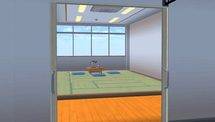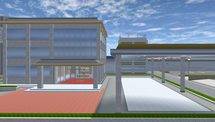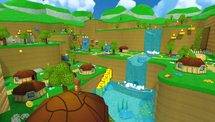

Sakura School Simulator's latest decorative props give players a new way to transform an empty corner into a greenhouse-style room filled with plants and natural scenery.
Highlights
-
Sakura School Simulator version 1.048.10 added 23 decorative props, including plants, pots, rocks and mirrors.
-
The additions include nine plant options, five pots, six rocks and three mirrors.
-
Players can use the built-in Props system to create garden rooms without installing mods.
-
Version 1.048.18 introduced an adjustable Sun weather option on Android.
-
A small greenhouse-style build can also serve as a background for screenshots and roleplay videos.
A quiet garden may not sound like the most exciting addition to Sakura School Simulator, but the game's expanding Props collection has made small creative projects more interesting.
Players who enjoy designing houses, filming school-life stories or creating custom locations now have more decorative options to work with.
Garusoft introduced 23 new props in version 1.048.10, including plants, pots, rocks and mirrors. Those objects are enough to give an ordinary room a greener atmosphere without relying on a downloaded building or modified game.
One idea worth trying is a miniature greenhouse: a bright, plant-filled space that can double as a relaxing hangout or a backdrop for a school-life story.
This is a player-created building concept using officially documented objects, not a newly announced greenhouse location or gardening mechanic.
Quick answer: To create a greenhouse-style room in Sakura School Simulator, open the Props editing interface, choose a suitable area and arrange plant, pot and rock objects into a compact garden. Players with the newer Android Sun setting can also adjust the lighting for a more attractive scene. No mod is required.
Table of Contents
-
What Is a Greenhouse Build?
-
Props Needed for a Greenhouse
-
How to Build a Greenhouse Step by Step
-
Using the Sun Setting for Better Lighting
-
Ideas for Greenhouse Roleplay
-
How to Reduce Lag
-
Frequently Asked Questions
What Is a Greenhouse Build in Sakura School Simulator?
A greenhouse build is a custom decorative space designed to look like a room or garden dedicated to plants.
In real life, greenhouses provide controlled environments for growing plants.
In Sakura School Simulator, the idea is primarily visual.
Players arrange decorative objects to create the appearance of a greenhouse, indoor garden or plant shop.
The game does not need to include a dedicated greenhouse building for players to experiment with this concept.
A small garden can work just as well as a large structure, especially when the goal is to capture screenshots or stage a short story.
Props Needed to Build a Greenhouse
The most useful additions come from Sakura School Simulator version 1.048.10, released on September 11, 2026, according to the game's App Store version history.
Garusoft listed four categories of new decorative objects.
| Prop type | New options | Suggested use |
|---|---|---|
| Plants | 9 | Main greenhouse decoration |
| Pots | 5 | Flower displays and plant corners |
| Rocks | 6 | Garden borders and natural accents |
| Mirrors | 3 | Decorative room details |
The counts come from Garusoft's release notes. The suggested uses are creative ideas rather than official placement requirements.
Players can also experiment with other building objects already available in their version of the game.
The important thing is to begin with a manageable number of objects.
How to Build a Greenhouse in Sakura School Simulator
A greenhouse-style build does not have to be complicated.
The following approach focuses on creating a clean space that looks appealing from several camera angles.
Step 1: Choose a Suitable Location
Start by finding an open area with enough room for decorations.
A backyard, an empty corner or a quiet outdoor space could work well.
Avoid placing the build in a crowded location where nearby characters or vehicles will constantly interrupt your scene.
Step 2: Open the Props Editing Interface
Open the game's Props system.
Depending on the installed version, players may find the relevant controls through the main Props menu or the character and item editing interface.
Look for the available decorative objects and building controls.
If the interface differs from an older tutorial, use the current in-game labels instead of assuming the menu has remained unchanged.
Step 3: Create a Simple Layout
Before adding plants, decide where the entrance and main display area should be.
Leave a clear path through the middle of the space.
A simple layout might have decorations along the sides with an open section in the center.
If suitable wall or frame objects are available, players can experiment with an enclosed room. Otherwise, an open-air plant room is a practical alternative.
Step 4: Arrange the Plants
Choose several plant props and place them around the room.
Avoid arranging every plant in a perfectly straight line.
Mix larger and smaller decorations where the available object sizes allow it.
Try grouping plants near the corners while keeping the center relatively open.
This creates a more natural-looking space and makes the garden easier to photograph.
Step 5: Add Pots and Rocks
Next, use pot props to create decorative clusters.
Rocks can help define borders or separate different sections of the garden.
For example, a row of rocks could mark the edge of a small plant display.
You can also place a few individual rocks away from the main group to make the arrangement feel less repetitive.
There is no need to use all 23 new objects in one scene.
Step 6: Adjust the Final Composition
Once the basic layout is complete, walk around the structure and examine it from different angles.
Check whether any objects overlap awkwardly.
Move anything that blocks the main view or makes the space look crowded.
If the game version provides suitable save controls for the Props arrangement, save the design before making further changes.
How to Use the New Sun Setting for Better Lighting
Lighting can change the appearance of an entire scene.
Garusoft added a Sun weather option in Android version 1.048.18, released on October 31, 2026.
The feature introduces a visible sun during daytime and a moon at night, along with adjustable sun positioning.
Players with access to the feature can open Game Setting and look under Weather for the Sun option.
For a greenhouse-style scene, experiment with the sun's angle and observe how it affects the plants, room surfaces and character.
Side lighting may create a more dramatic appearance, while a brighter angle can make decorations easier to see.
These are composition suggestions, not a promise that the game simulates real greenhouse lighting.
For an explanation of the feature, read also: Sakura School Simulator 1.048.18 Update: Sun Weather and 700m View.
Creative Roleplay Ideas for Your Greenhouse
Once the building is complete, it can become more than a decorative corner.
Players who make Sakura School Simulator stories could use the location for several simple scenarios.
School gardening club: Create a story about students maintaining a small garden after class.
Flower shop: Arrange plants as products and let a character play the role of the shopkeeper.
Quiet study corner: Use the plant-filled environment as a peaceful background for a school-life scene.
Photography location: Position a character among the decorations and experiment with camera angles.
These activities are original roleplay ideas. They are not official missions with unlockable rewards.
How to Reduce Lag When Using Many Props
A crowded custom build can place additional strain on a mobile device.
Garusoft warns in the game's Google Play description that Sakura School Simulator can require substantial CPU and GPU resources.
If the game becomes slow, try reducing the number of students and other characters using the available performance settings.
It is also sensible to limit decorative objects outside the camera's view.
Start with a small greenhouse layout and add details gradually.
A simple scene that runs smoothly will usually be more enjoyable to explore or record than a complicated structure that makes the game difficult to control.
Frequently Asked Questions
Can you build a greenhouse in Sakura School Simulator?
Players can create a greenhouse-style decorative room using available Props. It is a custom building concept rather than a dedicated farming feature.
Do you need mods to build a greenhouse?
No. A decorative greenhouse can be designed using the game's built-in Props system.
How many plant props were added in version 1.048.10?
Garusoft's release notes list nine plant props, along with five pots, six rocks and three mirrors.
Can plants grow inside the greenhouse?
The official update notes describe the new plants as props. They do not confirm a plant-growing or farming system associated with these additions.
Does Sakura School Simulator have adjustable sunlight?
Yes. Android version 1.048.18 introduced an adjustable Sun weather setting. Availability depends on the game version and platform.
Why does my greenhouse make the game lag?
Too many props, characters or rendered objects may put additional pressure on the device. Try simplifying the build and adjusting the game's performance settings.
Conclusion
Sakura School Simulator's expanding Props collection gives players more opportunities to create original locations without downloading mods.
A greenhouse-style room is a simple example of what can be achieved with plants, pots, rocks and thoughtful placement.
Start with a small garden, experiment with lighting and use the completed area as a background for screenshots or school-life stories.
Sometimes the most interesting location in Sakura School Simulator is the one you build yourself.