
- The 3+, 7+, 12+, 16+ and 18+ labels shown in Google Play's Indonesia store follow IARC's generic rating format.
- A 16+ rating allows realistic violence, strong language and depictions of criminal activity.
- Indonesia also has its own IGRS system with 3+, 7+, 13+, 15+ and 18+ categories.
- Parents can limit downloads through Parental controls in the Play Store, protected by a PIN.
- Restrictions do not apply to apps installed before the controls were turned on.
Many parents assume every mobile game is safe for kids because it looks cute. In fact, every game on Google Play carries an age label that describes its content, and that label can be used to limit what children are allowed to download.
Labels such as 3+, 12+ or 16+ appear on every game's store page, just below the title and star rating, yet they are easy to overlook. Even games that are hugely popular with children can carry a 16+ label, and the same game can be rated differently from one country to another.
This guide explains what each Google Play age label means, how it differs from Indonesia's national IGRS game rating system, examples from popular games, and how to set up parental controls in the Play Store and Family Link.
Quick answer: Google Play's age labels in markets such as Indonesia (3+, 7+, 12+, 16+, 18+) show the minimum recommended age based on a game's content. 3+ suits all ages, 7+ may include mildly frightening scenes, 12+ allows fantasy violence and simulated gambling, 16+ allows realistic violence and strong language, and 18+ is for adult content. Parents can restrict them in the Play Store by tapping the profile icon, then Settings, Family, Parental controls, and creating a PIN.What 3+, 7+, 12+, 16+ and 18+ Mean
Google Play adopted the International Age Rating Coalition (IARC) system in March 2015. Developers fill in a questionnaire about their game's content, and the system assigns ratings for each region. Regions such as the US and Europe use local boards like ESRB and PEGI, while territories without their own IARC board receive generic ratings in the 3+, 7+, 12+, 16+ and 18+ format, the same format shown in Google Play's Indonesia store.
| Label | Content allowed |
|---|---|
| 3+ | Suitable for all ages. Some violence in a comical or fantasy context is acceptable, but no bad language. |
| 7+ | May contain scenes or sounds that frighten children. Mild, implied or non-realistic violence is allowed. |
| 12+ | Fantasy violence or non-graphic violence toward human-like characters, non-graphic nudity, mild language and simulated gambling. |
| 16+ | Realistic violence, sexual activity, strong language, tobacco and drug use, and depictions of criminal activity. |
| 18+ | Graphic violence, graphic sexual content, discriminatory acts or glamorization of illegal drug use. |
Summary of IARC generic rating definitions. Ratings are based on developers' questionnaire answers and can differ between countries.
An age label is not a judgment of a game's quality or difficulty. It only describes the type of content inside. Also look at extra notes such as in-app purchases, user interaction and ads.
Examples From Popular Games
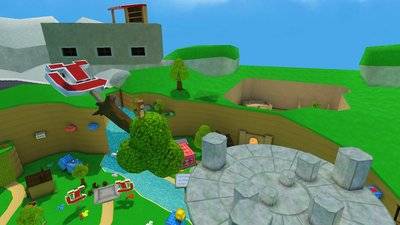
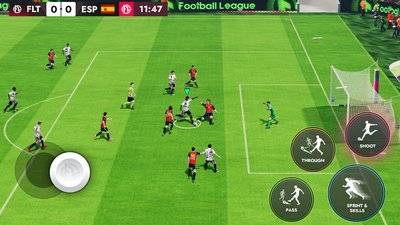
Based on Industry.co.id's check of Google Play Indonesia on November 20, 2026, puzzle game Amochiroom Puzzle: Room Sort and the Easy Cube solver app are rated 3+. Football game Football League 2027 is also 3+.
PUBG Mobile Flash, by contrast, is rated 16+. Interestingly, the laid-back sim Rent Please! Landlord Sim is also rated 16+ in Indonesia, even though the same game is listed as Everyone in the US store.
That last example shows why it matters to check the label in your own country's store, since ratings can vary by region.
How It Differs From Indonesia's IGRS
Besides Google Play's labels, Indonesia has a national game rating system called the Indonesia Game Rating System (IGRS). It was created by the Ministry of Communication and Informatics in 2016 and is now run by the Ministry of Communication and Digital Affairs (Komdigi).
Its rules were updated through Ministerial Regulation No. 2 of 2024. IGRS uses 3+, 7+, 13+, 15+ and 18+ categories, plus RC (Refused Classification) for games containing pornography, gambling with legal payment instruments or other violations of the law. RC games may not be distributed in Indonesia.
According to Wikipedia, the IGRS service launched at igrs.id on October 11, 2025, with enforcement starting in January 2026. Because the categories differ, a 12+ or 16+ label on Google Play is not the same as a 13+ or 15+ IGRS label.
How to Turn On Parental Controls in the Play Store
If a phone is shared or your child uses their own Google account that is not managed with Family Link, follow these steps from Google's help center.
First, open the Google Play app and tap the profile icon at the top right. Second, go to Settings, then Family, then Parental controls or content restrictions. Third, turn the controls on and create a PIN your child does not know.
Fourth, choose the content type to restrict, such as Apps & games, then set the highest rating allowed for downloads or purchases, for example 12+. Menu names may differ slightly depending on your Play Store version and device language.
How to Set Limits With Family Link
For children whose accounts are managed with Google Family Link, settings are changed from the parent's phone. Open the Family Link app, select your child at the top left, tap Controls, then Google Play.
Choose the type of content to filter, then set the maximum rating allowed. With Family Link, changing these settings requires the parent's Google Account password rather than a PIN.
Family Link can also require parental approval before a child buys something on Google Play. Purchase approval settings only apply to purchases made through Google Play's billing system.
Limitations Parents Should Know
According to Google's help center, content restrictions only apply to the device you set them up on. If your child uses another phone, you need to set them up again.
Apps and games installed before the restrictions were turned on can still be opened, even if their rating is above the limit. Restrictions also do not hide content from search results or direct links, and they do not change the games shown in the Play Games app.
So after turning on parental controls, review the games already on your child's phone. Technical restrictions work best alongside supervision and conversations about the games kids play.
FAQ (Frequently Asked Questions)
A 12+ game may include fantasy violence or non-graphic violence toward human-like characters, non-graphic nudity, mild language and simulated gambling. A 16+ game may include realistic violence, sexual activity, strong language, tobacco and drug use, and depictions of criminal activity. IGRS, the Indonesia Game Rating System, is Indonesia's national game rating system run by Komdigi, with 3+, 7+, 13+, 15+ and 18+ categories plus RC for games banned from distribution. Open Google Play, tap the profile icon, go to Settings, Family, then Parental controls. Turn them on, create a PIN, choose Apps & games and set the highest rating allowed. No. Games installed before the controls were turned on can still be opened, so parents need to check and remove them manually if needed.1. What does a 12+ rating mean on Google Play?
2. What does a 16+ rating mean on Google Play?
3. What is IGRS?
4. How do I limit games by age in the Play Store?
5. Do parental controls remove games that are already installed?
Conclusion
Google Play's 3+, 7+, 12+, 16+ and 18+ labels are a simple way to understand a game's content before downloading it. They differ from Indonesia's IGRS categories, but the goal is the same: protecting children from content that is not right for their age.
Turn on parental controls in the Play Store or Family Link, review the games already installed and make a habit of checking the age label every time your child asks for a new game.
- Google Play's 3+ to 18+ labels in markets like Indonesia follow IARC generic ratings.
- Popular games can be rated 16+, and ratings can differ between countries.
- Indonesia's IGRS uses 3+, 7+, 13+, 15+, 18+ and RC categories.
- Parental controls live under Settings, Family, Parental controls, with a PIN.
- Restrictions do not apply to games installed beforehand.