- The most common cause is full storage; keep more free space than the update size.
- Pending usually means other updates are queued or downloads are set to Wi-Fi only.
- Clearing the Play Store cache often fixes stuck updates without deleting game data.
- A missing Update button can mean your Android version is too old or the update is a staged rollout.
- Do not rush to uninstall: make sure your progress is saved to the cloud or an account first.
Your favorite game just got an update and friends are already trying the new features, but on your phone the Update button will not cooperate. It sits on Pending, fails halfway, or does not appear at all. The problem is very common and almost always fixable at home.
It happens most often when popular games such as Sakura School Simulator, Super Bear Adventure or Minecraft push a big update and millions of players download it at the same time.
Below are the eight most common reasons a game will not update on the Google Play Store, ordered from most to least frequent, with fixes that keep your game data safe.
Quick answer: A game usually fails to update on the Play Store because phone storage is full, downloads are queued or set to Wi-Fi only, the Play Store cache is corrupted, the connection is unstable, the phone's date and time are not automatic, the Android version is below the game's minimum, the update is still rolling out in stages, or the Play Store and Google Play services are outdated. Start by freeing storage and clearing the Play Store cache.The 8 Causes and Quick Fixes at a Glance
Use this table as a checklist. Try each fix from the top, and retry the update after every step.
| No | Cause | Sign | Quick fix |
|---|---|---|---|
| 1 | Storage full | Not enough space message or failed download | Delete unused files and apps |
| 2 | Queue or Wi-Fi only setting | Stuck on Pending | Cancel other updates, change network preference |
| 3 | Corrupted Play Store cache | Update stops without a clear error | Clear Google Play Store cache |
| 4 | Unstable connection | Progress stops midway | Switch networks, turn off VPN |
| 5 | Wrong date and time | Connection errors with Google | Turn on automatic date and time |
| 6 | Android version too old | No Update button | Check the game's minimum requirement |
| 7 | Staged rollout | Friends have it, you do not | Wait 1-3 days and check again |
| 8 | Outdated Play Store | Many apps fail to update | Update Play Store and Google Play services |
1. Your Phone Storage Is Full
This is the number one cause. The Play Store has to download the update and then install it, so the free space needed can be larger than the listed update size. 3D games such as Minecraft or Sakura School Simulator can need hundreds of megabytes per update.
Check free space under Settings, then Storage. Delete videos and photos that are already backed up, empty the Downloads folder and uninstall apps you rarely use. Avoid clearing the data of the game you want to update, because that can wipe your progress.
2. Stuck on Pending
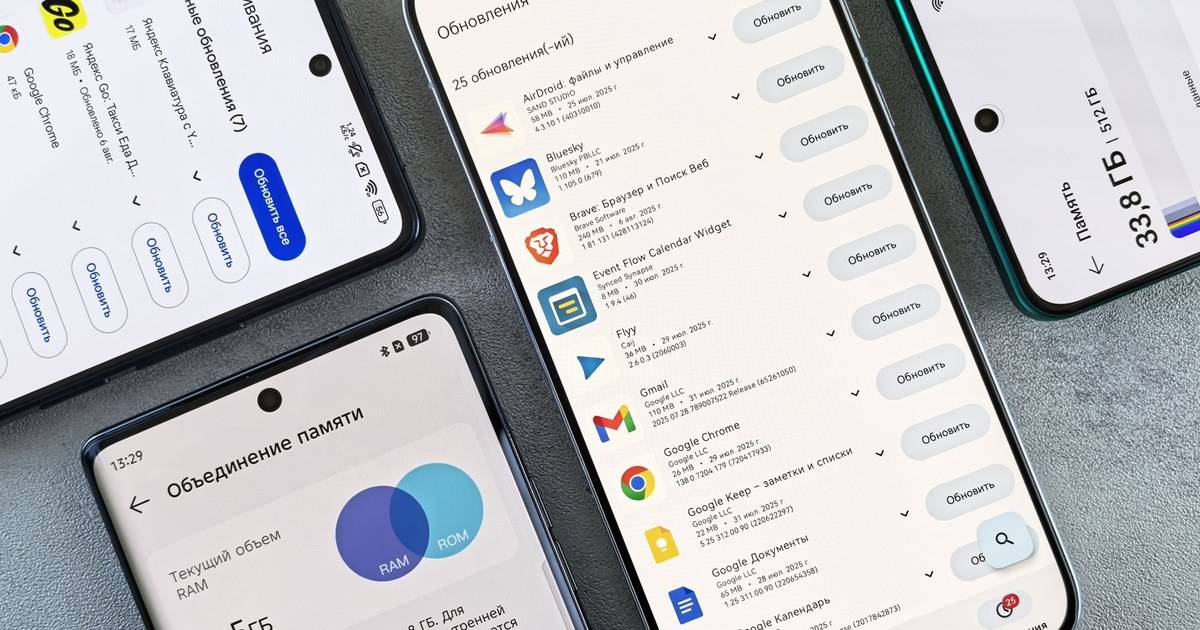
Pending means the update is waiting in a queue. The Play Store usually processes updates one at a time, so if dozens of other apps are updating, your game has to wait. Open the Play Store, tap your profile photo, choose Manage apps and device, then cancel the other updates and run the game update first.
Another cause is a Wi-Fi only download setting. In the Play Store, tap your profile photo, open Settings, then Network preferences, then App download preference, and switch to Over any network if you want to update on mobile data.
3. A Corrupted Play Store Cache
Damaged temporary files can make an update stop with no clear error. Open Settings, Apps, choose Google Play Store, then Storage and cache, and tap Clear cache. This does not delete your games or game data.
If that does not work, do the same for Google Play services, then restart the phone before trying again.
4 and 5. Unstable Connection and Wrong Clock
Large updates often fail on a weak signal. Move to a stable Wi-Fi network and temporarily turn off any VPN or data-saver app, since both can interfere with the connection to Google's servers.
An incorrect date and time is easy to overlook. Google's security checks look at the device clock, so a manually set time can trigger connection errors. Go to Settings, Date and time, and turn on automatic settings.
6. Your Android Version Is Below the Minimum
If the Update button never appears, check your Android version under Settings, About phone. Developers sometimes raise the minimum when they upgrade their game engine. Super Bear Adventure, for example, has required Android 7.1 or newer since version 13.0.7, when it moved to Unity 6.3.
There is no safe workaround other than updating the phone's system if available or using a newer device. Avoid modded APKs from unofficial sites, which carry malware risk and can corrupt save data.
7 and 8. Staged Rollouts and an Outdated Play Store
Many developers release updates in stages, so some players get them before others. iPhone updates also need Apple's review first, so timing can differ from Android. In these cases, waiting one to three days is usually enough.
Also make sure the Play Store itself is current. In Play Store Settings, open About and tap Play Store version. For system services, open your phone's Settings, Security and privacy, and look for Google Play system update.
If You Must Uninstall, Protect Your Save First
Uninstalling and reinstalling often works, but it should be the last step. Before doing it, make sure your progress is saved to the cloud or an account. Games handle this differently: some use Google Play Games, others keep data only on the phone.
Super Bear Adventure's developer, for example, says that since 13.0.3 the Android app can keep save files when uninstalled, and since 13.0.9 cloud saves load automatically on reinstall. For other games, check the settings menu or the developer's official site before removing the app.
FAQ (Frequently Asked Questions)
Usually because other app updates are queued or downloads are set to Wi-Fi only. Cancel other updates and change App download preference in Play Store settings. No. Clearing the cache only removes the Play Store's temporary files. Your games and game data stay intact. The update may be rolling out in stages, or your Android version may be below the game's minimum. Wait one to three days and check your Android version. Keep more free space than the listed update size, because the Play Store has to download and then install the update. It can work, but do it last. Make sure your progress is saved to the cloud or an account so it is not lost.1. Why is my game update stuck on Pending?
2. Does clearing the Play Store cache delete my games?
3. Why don't I see the Update button when my friends already updated?
4. How much free space do I need to update a game?
5. Is it safe to uninstall a game to fix an update?
Conclusion
Most Play Store game update problems are solved by two simple steps: freeing storage and clearing the Play Store cache.
If the Update button is missing, check your Android version and give staged rollouts time. Leave uninstalling as the last resort, after your save data is safe.
- Full storage is the most common reason updates fail.
- Pending means a queue or a Wi-Fi only setting.
- Clearing the Play Store cache is safe for game data.
- A missing Update button can mean an old Android version or a staged rollout.
- Back up your save before uninstalling.