Super Bear Adventure's wardrobe has grown from a fun distraction into a surprisingly large collection. When you have dozens of hats, colors and accessories, the biggest challenge is not finding something beautiful. It is finding the same beautiful combination again next week.
Update 13.0, released in July 2026, overhauled the bear customization area, introduced preset outfits and added a search tool. That is a better story for players than another generic list of every costume in the shop. Here is how to use those interface changes to keep your favorite looks organized, without inventing secret unlock codes or assuming that every cosmetic is free.
Highlights
- Update 13 rebuilt the bear customization interface and added preset outfits and a search tool.
- The update also expanded the cosmetic collection by more than 150 items and updated existing item levels.
- Grannytalus handles the items shop and lootboxes, while Capitalos sells cosmetic bundles.
- A useful wardrobe system separates everyday looks from event outfits and experimental combinations.
Quick answer: Open the current customization interface, use the search function to find the relevant cosmetic, then explore the available preset-outfit controls. Start with a small number of recognizable looks and confirm how the game saves them on your version before changing your favorite combination.
Table of Contents
- What actually changed in the customization area?
- Start with a wardrobe you can recognize at a glance
- Use search instead of scrolling forever
- Separate owned items from items you still want
- Create outfits that work for screenshots and gameplay
- What to check when a saved outfit looks wrong
- A ten-minute wardrobe cleanup routine
- Frequently Asked Questions
- Final Thoughts
What actually changed in the customization area?
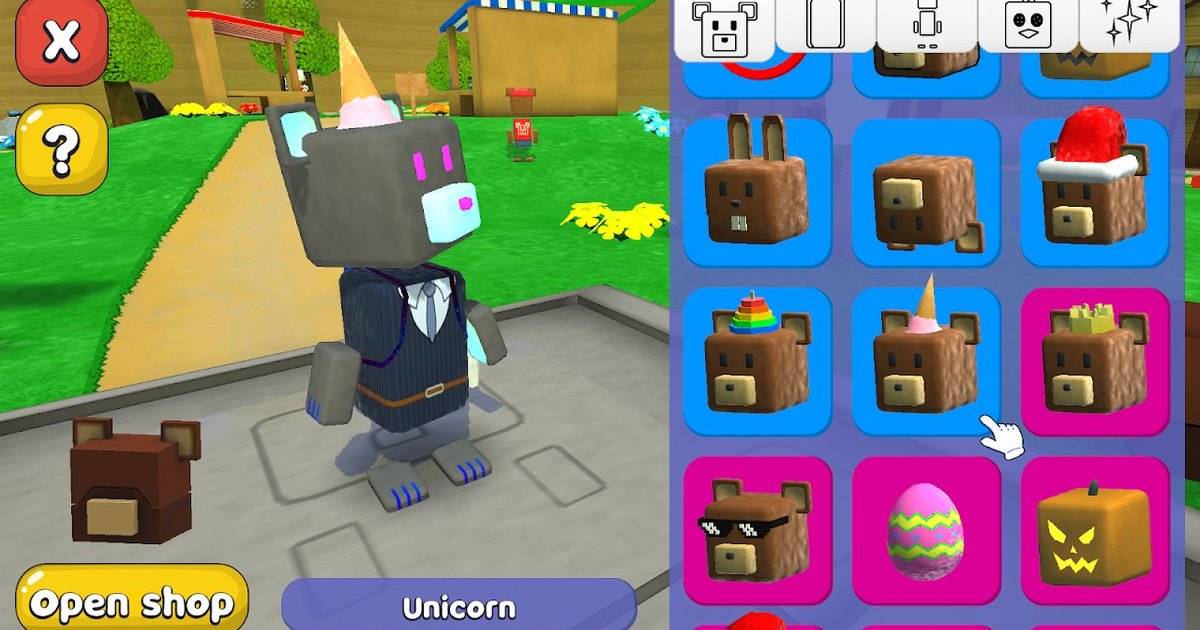
Earthkwak Games says the entire interface was redesigned in the 13.0 update. Preset outfits, a search function and new sound effects when equipping items were part of the change. The developer also added more than 150 items and many new levels for existing items. If an old guide sends you to a menu that looks completely different, the guide may predate the overhaul.
The change also redistributed shop responsibilities. Grannytalus became the shopkeeper for items and lootboxes in Bear Village, while cosmetic bundles can be purchased from Capitalos' blue shop. Those are different parts of the collection system. Do not confuse a paid bundle, a general shop item and a preassembled outfit preset just because they all appear in the broader customization journey.
The official changelog confirms the presence of these features but does not prescribe one universal sequence of menu taps for every device. Read the current interface labels carefully rather than treating older screenshots as the only possible route.
Start with a wardrobe you can recognize at a glance
Before changing anything, decide which three looks you actually want to keep. An everyday exploration outfit should be easy to recognize and comfortable to look at on screen. A second can be an exaggerated costume for silly screenshots or group sessions. A third can be your favorite theme — pirate, futuristic, or anything else your unlocked items support.
Give each look a visual purpose. If every outfit uses the same colors with one barely visible accessory swapped, you may forget why you saved multiple combinations. Create contrast between the first and second presets so switching feels meaningful. You can always expand later, but beginning with three clear looks is easier than building a wardrobe of ten nearly identical bears.
If the customization interface offers a way to save, rename or replace a preset in your particular build, test it with a low-stakes outfit first. Do not overwrite a favorite look until you are sure how confirmation and saving work.
Use search instead of scrolling forever
The biggest time-saving habit is to search for a specific item or item family when the interface allows it. Update 13 explicitly added a search tool. That does not mean it recognizes every nickname players invent online, so use the in-game names and categories that appear on your version.
Think in terms of the outfit's most distinctive part. If you are building a robot-themed look, find the headpiece or obvious accessory first. Then choose compatible colors and smaller pieces. Searching for one central item is more productive than changing everything at once and then struggling to remember what you owned.
After equipping an item, return to the whole-character view. A cosmetic can look fantastic in a close-up icon but awkward when combined with a bulky hat or another accessory. Outfit design is about the entire silhouette, not the value of each individual piece.
Separate owned items from items you still want
With more than 150 new items added in 13.0, it is easy to mistake a preview for something already unlocked. Do not tell yourself that an item is missing just because a clip shows someone wearing it. It may belong to a specific shop, progression level or optional paid bundle, and game versions can differ across platforms.
Create a small wishlist outside the game if you enjoy collecting. Put the item name, likely acquisition route and whether you already own it. This habit keeps the collecting goal realistic and helps you avoid repeatedly opening menus to search for the same unavailable piece.
When purchases are involved, use only the game's authorized payment interface. Avoid third-party claims that paid cosmetics can be unlocked by entering a code in an unrelated website. The official notes describe paid bundles as purchases, not hidden free passwords.
Create outfits that work for screenshots and gameplay
An outfit that looks excellent in a close-up may become distracting when you are running through a busy level. Try one practical look with a clean, recognizable shape and one dramatic costume for photography. Keep the everyday outfit visually readable against different backgrounds.
For screenshots, choose one dominant color and one contrasting detail. A pirate theme might use a recognizable accessory plus a restrained palette, while a futuristic theme can lean into a more unusual headpiece. You do not need to purchase a theme pack to practice good composition with items already in your wardrobe.
For group sessions, coordinate loosely rather than making everyone wear an identical uniform. Shared color accents create a team feeling while letting each player's bear remain recognizable. That can be useful when several people are moving around the same scene.
What to check when a saved outfit looks wrong
Update 13 introduced multiple changes to customization, but its early patches also fixed specific issues. The 13.0.4 notes mention a problem where a tiny bear affected scaling in the saved-outfit screen. The 13.0.3 notes address bundles purchased on secondary saves not appearing across all saves. Those are concrete examples of interface and entitlement bugs that can make a wardrobe seem inconsistent.
If something looks wrong, first check the official version, then reproduce the issue on the same save. Make a screenshot of the outfit before and after the change. Avoid deleting saved data or buying an item twice because it appears missing in one view. If the problem is purchase-related, consult official support with the appropriate transaction information, keeping your account details private.
A mismatch between what a thumbnail displays and how the bear looks in a scene is not automatically proof of a new secret skin. It may be a loading or scaling issue that has been fixed in later patches.
A ten-minute wardrobe cleanup routine
Spend two minutes choosing the three outfits you actually use. Spend three minutes locating their important accessories with the search tool. Use another three minutes to test the available preset controls and confirm what survives leaving the menu. In the final two minutes, take a screenshot of each look so you can rebuild it if needed.
If you play across devices or save slots, confirm that the items and presets appear where expected. Do not assume purchased content, local save details and outfit selections all sync in exactly the same way. The official changelog documents certain purchase and saved-outfit fixes, but it does not promise unlimited synchronization across every setup.
Repeat this cleanup only when new items arrive or you feel like changing themes. Fashion should be the fun part of the game, not another daily chore.
Frequently Asked Questions
Did Super Bear Adventure add outfit presets in 2026?
Yes. Earthkwak's update 13.0 changelog lists preset outfits and a new customization interface.
Can I search for cosmetics by name?
A search tool was added in update 13. Check the exact item names and available search options in your installed build.
Are all new cosmetics free?
No. The update includes paid bundles as well as the wider cosmetic collection; their acquisition routes are not interchangeable.
Where is Grannytalus?
The official notes identify Grannytalus as the Bear Village shopkeeper handling items and lootboxes.
Why does my saved outfit look scaled incorrectly?
An early 13.0.4 patch fixed scaling issues involving a tiny bear in the saved-outfit screen. Update first and verify whether the issue persists.
Final Thoughts
A bigger wardrobe is better only when you can actually find what you own. The update 13 search tool and preset system make cosmetics more approachable, but a little organization still helps. Keep your favorite looks simple, test how your build saves them, and spend the rest of your time playing rather than scrolling through hats.
Sources and version notes
Official references used to verify gameplay facts. Player-created build plans and troubleshooting checklists are editorial recommendations, not developer-prescribed missions.