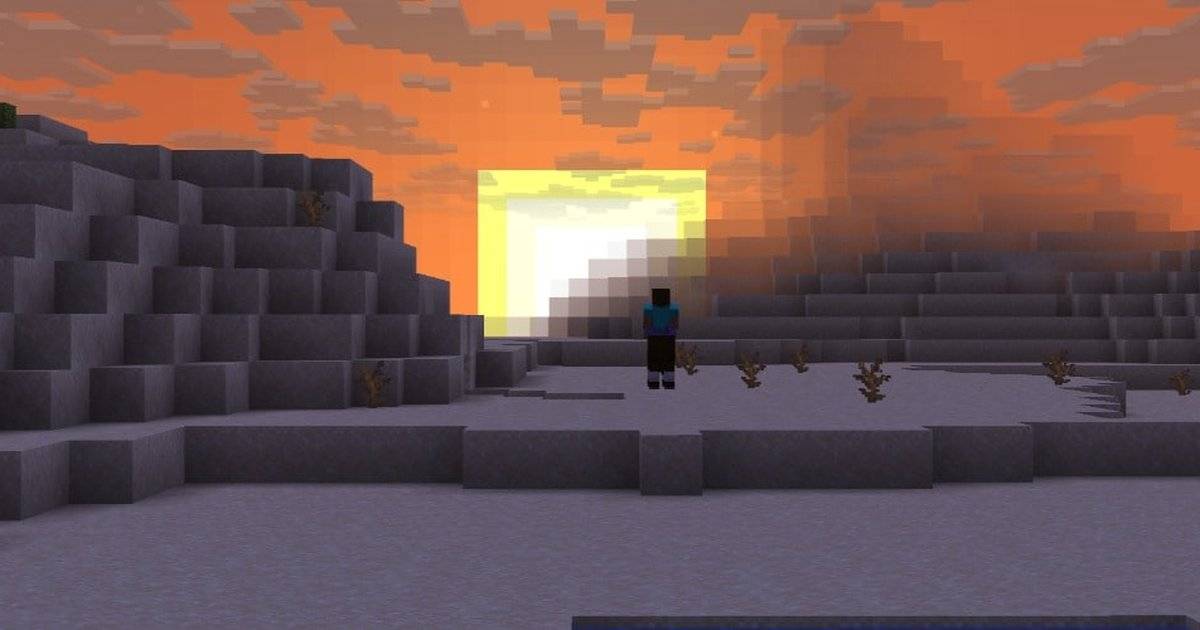
- Java 26.4 Snapshot 3 replaced Social Interactions with the new Other Players screen.
- Open it with the P key or the Other Players button in the pause menu.
- Player Options now holds friend requests, mute and report in one place.
- The Friends list gained search and sorting by online status or name.
- Muting hides a player's chat until you restart the game.
Playing Minecraft with friends gets easier in the upcoming 26.4 update. Mojang has rebuilt the social menus in Java Edition, replacing the old Social Interactions screen with a new Other Players menu and a single Player Options screen for every person you meet.
The changes arrived in Java Edition 26.4 Snapshot 3, the same snapshot that introduced Ice Caves and the Frostbite. They do not add new blocks, but they change how you find friends, deal with annoying players and manage requests.
Here is a quick tour of the new menus and how to do the most common tasks.
Quick answer: In Minecraft 26.4, press P (default key) or click the Other Players icon in the pause menu while on a server, Realm or LAN world. Click any player's icon to open Player Options, where you can send or cancel a friend request, mute or report them. Blocking players is handled through Other Players.What Changed in the Social Menus?
Mojang's Snapshot 3 notes say the Social Interactions screen has been replaced with Other Players, and the Social Interactions keybind has been renamed to Other Players. The Friends button also has a new icon.
A new Player Options screen gathers per-player actions that were previously spread across the Friends list and Social Interactions. The Visibility option moved from Online Options into the Friends list.
The icon buttons in the pause menu were reordered to match the main menu, so the layout feels more consistent.
| Old | New in 26.4 |
|---|---|
| Social Interactions screen | Other Players screen |
| Social Interactions keybind | Other Players keybind (P) |
| Remove Friend button in list | Inside Player Options |
| Visibility in Online Options | Inside the Friends list |
| Separate per-player actions | One Player Options screen |
Based on Mojang's Java Edition 26.4 Snapshot 3 notes.
How to Open the Other Players Screen
Other Players only appears when you play in a world open to multiplayer. That includes singleplayer worlds opened to LAN, dedicated servers and Realms.
Press P, the default key, or open the pause menu and click the Other Players icon button.
The list shows players who are online in your world. It also keeps people who are no longer online but may matter, such as players who just left and players who recently sent chat messages. That makes it easier to report someone after they log off.
Mute, Report and Friend Requests in Player Options
Click a player's icon in Other Players or in your Friends list to open Player Options. From there you can send or cancel a friend request, accept or decline a request, mute the player or report them.
Muting hides that player's chat messages until the next time you start the game. Blocking players is still managed through the Other Players screen.
Player reporting also got friendlier. Reports saved as drafts no longer prompt you to discard them when you exit a world if they can be continued later. Name and skin reports can be continued if the player is on your Friends list, while chat reports cannot. Quitting the game with an unsent draft now shows a warning.
| Action | Where to do it |
|---|---|
| Send or cancel friend request | Player Options |
| Accept or decline request | Player Options |
| Mute a player | Player Options (until restart) |
| Report a player | Player Options |
| Block a player | Other Players screen |
| Remove a friend | Player Options |
Using the New Friends List
The Friends list has a refreshed design. In the Friends tab, the box you use to type a profile name for a request now doubles as a search box.
If you have 15 or more pending requests, a search box appears at the top of the requests tab.
A new sort button cycles between two modes: by who is online, which puts online friends first, and alphabetical order. The old Remove Friend button is gone from the list, and that action now lives in Player Options.
Tips for Safer Multiplayer
Use mute first if someone is just noisy, since it resets on restart and does not affect the rest of the server. Use block or report for harassment.
Set your Visibility option inside the Friends list to control who can see you online.
These menus are part of a snapshot, so Mojang may still adjust them based on feedback before 26.4 is released.
FAQ (Frequently Asked Questions)
The new Other Players screen, added in Java Edition 26.4 Snapshot 3. Press P by default, or click the Other Players icon in the pause menu while in a multiplayer, LAN or Realms world. Muting hides their chat until the next time you start the game. It moved into Player Options, opened by clicking a friend's icon. Yes. The profile name box in the Friends tab works as a search box, and requests get a search box at 15 or more.1. What replaced Social Interactions in Minecraft?
2. How do I open Other Players?
3. How long does muting a player last?
4. Where is the Remove Friend button now?
5. Can I search my Friends list?
Conclusion
The Other Players screen and Player Options make Minecraft's social tools simpler: one key to see who is around, one screen to mute, report or befriend them, and a Friends list you can finally search and sort.
- Press P to open Other Players.
- Player Options handles requests, mute and report.
- Mute lasts until restart; block via Other Players.
- Friends list now has search and sorting.
- Only available in multiplayer, LAN or Realms worlds.