Highlights
-
Sakura School Simulator allows players to build custom environments using its Props system.
-
Version 1.047.11 introduced a handheld camera item and camera-related Props.
-
Players can create television studios, interview scenes and fictional field reports.
-
Recording gameplay requires a supported screen-recording feature on the player's device.
-
Video editing applications can be used to add headlines, lower-third captions and other broadcast graphics.
-
The game's camera props are decorative objects, not confirmed built-in video-recording equipment.
Sakura School Simulator has become a creative playground for players who enjoy producing short stories and videos.
Its open-ended world allows players to control different characters, explore locations and customize scenes without following a mandatory storyline.
That flexibility also makes it possible to create a fictional television news broadcast.
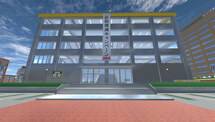
Imagine a student news anchor sitting inside a studio, introducing the day's biggest story before handing over to a reporter standing outside Sakura Gakuen High School.
With a little planning, this kind of scene can be recreated using existing game tools and an ordinary mobile video editor.
Players do not need to wait for Garusoft to introduce an official television station.
Instead, they can design their own newsroom and produce a short broadcast using the game's creative features.
Quick Answer: To make a TV news broadcast in Sakura School Simulator, prepare a studio using Props, customize a character as a news anchor and arrange suitable camera decorations. Record the studio and field-report scenes using your device's screen recorder, then combine the clips in a video editor. The process is player-created and does not require an official television broadcast mode.
Table of Contents
-
Can You Create a TV News Broadcast?
-
How to Build a News Studio
-
Camera Items and Props
-
How to Create a News Reporter
-
How to Record Field Reports
-
How to Edit a Professional-Looking Broadcast
-
News Story Ideas
-
Frequently Asked Questions
Can You Make a TV News Broadcast in Sakura School Simulator?
Yes. Players can create fictional news programs using the game's sandbox tools.
Sakura School Simulator includes character customization, movable characters, Props editing and numerous locations suitable for filming.
However, there is an important difference between creating a news broadcast and using an official broadcasting feature.
Garusoft's published documentation does not establish a complete in-game television station system that automatically records and transmits programs.
Instead, players construct the scenes themselves.
The actual video is captured and edited using external recording and editing tools.
That approach gives creators considerable control over the final result.
How to Build a News Studio in Sakura School Simulator
A believable news studio does not require a huge building.
Even a small room can become an effective television set if the objects are arranged carefully.
Step 1: Choose the Location
Begin with a relatively quiet area.
An empty room, house interior or custom building can serve as the newsroom.
Choose a location with enough space for a presenter, a desk and a background.
Avoid crowded areas where unrelated NPCs may interrupt the recording.
Step 2: Open the Props Editor
Access the game's Props interface.
Look for suitable furniture and decorative objects.
A television news studio typically needs a presenter desk, seating and a recognizable background.
Use available Props to recreate those elements.
Step 3: Arrange the Studio Desk
Position a table or suitable object where the news anchor will sit or stand.
Keep the desk centered within the intended camera view.
Make sure the character's face remains visible above the table.
Step 4: Create a Simple Background
A clean background is more effective than a wall covered with unnecessary decorations.
You can use panels, decorative objects and other suitable Props to create the impression of a newsroom.
For a fictional television station, choose a short channel name and use it consistently throughout the video.
Step 5: Adjust the Lighting
Lighting helps make the presenter visible.
Avoid positioning the character in an area that is significantly darker than the background.
Players using a compatible Android version can also experiment with the Sun setting introduced in version 1.048.18.
For indoor scenes, adjust the available camera and environment settings until the character is clearly visible.
What Camera Features Are Available?
Garusoft introduced several camera-related additions in Sakura School Simulator version 1.047.11.
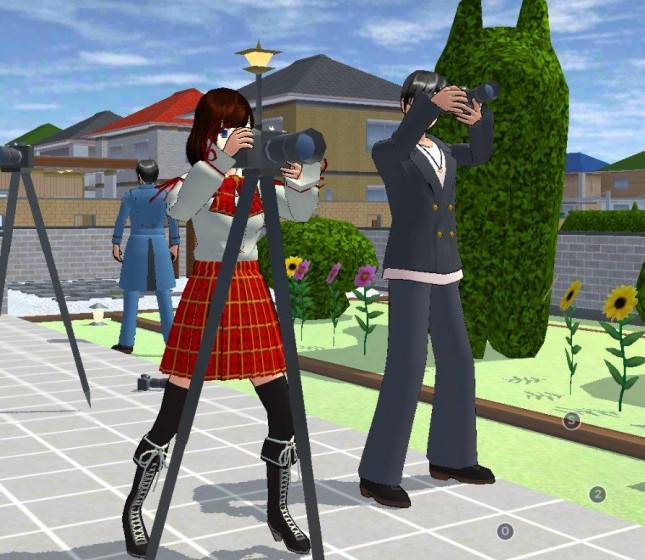
These include a handheld Camera item, a Camera prop and a Camera: Tripod prop.
| Feature | Available category | Suggested use |
|---|---|---|
| Handheld Camera | Item Editing, Left Hand | Reporter accessory |
| Camera Prop | Props | Studio decoration |
| Camera: Tripod | Props | Fictional filming equipment |
| Headshot | CharaEdit Camera Settings | Character-focused framing |
These features have different purposes.
For example, a handheld camera can help a character resemble a reporter or camera operator.
A tripod prop can create the impression of a professional filming environment.
However, placing a camera prop in a room does not automatically record gameplay footage.
The actual recording must be performed through a supported capture feature on the player's device.
Read Also: Sakura School Simulator Camera Guide: Headshot Mode and Tripod Props.
How to Create a News Anchor Character
The presenter is the central figure in the studio.
Choose a playable character and open the customization interface.
Select an outfit that fits the tone of your fictional news program.
For a serious broadcast, an understated outfit can help keep attention on the story.
Experiment with hairstyles and facial expressions to create the right appearance.
Next, position the character behind the news desk.
A simple medium shot showing the character's face and upper body is a useful starting point.
The goal is to create the impression that the presenter is speaking directly to the audience.
How to Record a Field Report
A news broadcast becomes more interesting when it includes footage from outside the studio.
The original Industry.co.id guide recommends combining studio scenes with field reports.
Players can use Sakura Town's various locations as fictional reporting sites.
Step 1: Choose a Story
Begin with a simple fictional event.
For example, you could create a report about a school festival, a vehicle exhibition or a new café opening.
Step 2: Select the Location
Choose a location that visually supports the story.
A report about student activities might take place outside the school.
A story about a restaurant could be recorded near a food-related location.
Step 3: Prepare the Reporter
Customize a second character to represent the field reporter.
Equip the handheld Camera item on another character if you want to create the appearance of a camera crew.
Step 4: Record the Scene
Use the device's screen-recording function to capture the gameplay.
Keep the main character clearly visible.
Try recording several short clips rather than one continuous scene.
Step 5: Return to the Studio
After recording the field report, capture another scene showing the news anchor.
This makes it easier to transition back to the studio during editing.
How to Edit Your TV News Broadcast
Video editing is where the separate scenes become a recognizable television program.
Players can use a mobile editor that supports video clips, text overlays and audio.
Applications such as CapCut or KineMaster provide tools that may be useful for this process.
Arrange the Scenes
A simple broadcast could use the following structure.
| Segment | Suggested duration |
|---|---|
| Opening title | 3–5 seconds |
| Studio introduction | 10–15 seconds |
| Field report | 20–30 seconds |
| Return to studio | 5–10 seconds |
| Closing title | 3–5 seconds |
These durations are editorial suggestions, not game requirements.
Add News Graphics
Use the editing application to create a channel logo or program title.
You can also add lower-third captions showing the reporter's name and fictional location.
Keep the text short enough to remain readable on a phone screen.
Add Audio
Record narration or dialogue using the tools available on your device.
If you use background music, make sure you have the appropriate rights to include it.
Create a Breaking News Effect
For a fictional breaking-news scene, use simple headline graphics and a short transition.
Avoid crowding the screen with too many moving elements.
The important thing is keeping the story understandable.
Four TV News Story Ideas for Sakura School Simulator
Players looking for inspiration can try these fictional story concepts.
School Festival Announcement: A news anchor introduces a festival taking place at Sakura Gakuen High School.
New Restaurant Opening: A reporter visits a food-related location to interview fictional customers.
Traffic Report: A field reporter covers a staged traffic disruption in Sakura Town.
Student Council Election: A newsroom announces the results of a player-created student council election.
These are original storytelling ideas, not automatically generated missions.
Common Mistakes When Creating a News Broadcast
The first mistake is using a visually crowded background.
A studio filled with too many Props can distract viewers from the presenter.
Another mistake is assuming that the camera prop will record video automatically.
Players should prepare their device's screen-recording function before filming.
Audio is another important consideration.
If narration is difficult to understand, subtitles can help viewers follow the story.
Finally, keep the video relatively short.
A concise story with a clear beginning, middle and ending is generally more effective than a long recording without a defined subject.
Frequently Asked Questions
Can you make a TV news broadcast in Sakura School Simulator?
Yes. Players can create a fictional news program using character customization, Props and external video-recording tools.
Is there a TV studio in Sakura School Simulator?
Players can construct a custom studio using Props. The developer has not confirmed a dedicated automated news-broadcasting mode.
Does the game have camera props?
Yes. Version 1.047.11 introduced camera-related items and Props, including a tripod camera.
Can a camera prop record video?
The official release notes identify camera objects, but do not confirm that the Props function as built-in video recorders.
How do you record gameplay?
Use a supported screen-recording feature on your Android device or iPhone.
Can you add breaking-news text?
Yes. Text overlays and broadcast graphics can be added using a compatible video editor.
Can you share the news studio?
A custom Props creation can be shared through the game's Props ID system if it meets the upload requirements.
Conclusion
Creating a television news broadcast is another way to experience Sakura School Simulator's creative possibilities.
Players can transform an ordinary room into a newsroom, customize characters as reporters and record fictional events throughout Sakura Town.
The game's camera Props make these scenes more convincing, while external editing tools help turn ordinary gameplay footage into a finished broadcast.
For players interested in storytelling or video creation, the project offers a practical way to combine game design, character direction and basic editing skills.